Verified App Store listing · Official Manual

Shadowrocket Setup & Rules

A rule-based routing client for iPhone and iPad, available for a one-time purchase. Start by verifying the official listing, then follow the steps to import your existing configuration.

Shadowsocks VLESS On Demand

Client purchase ≠ server subscription

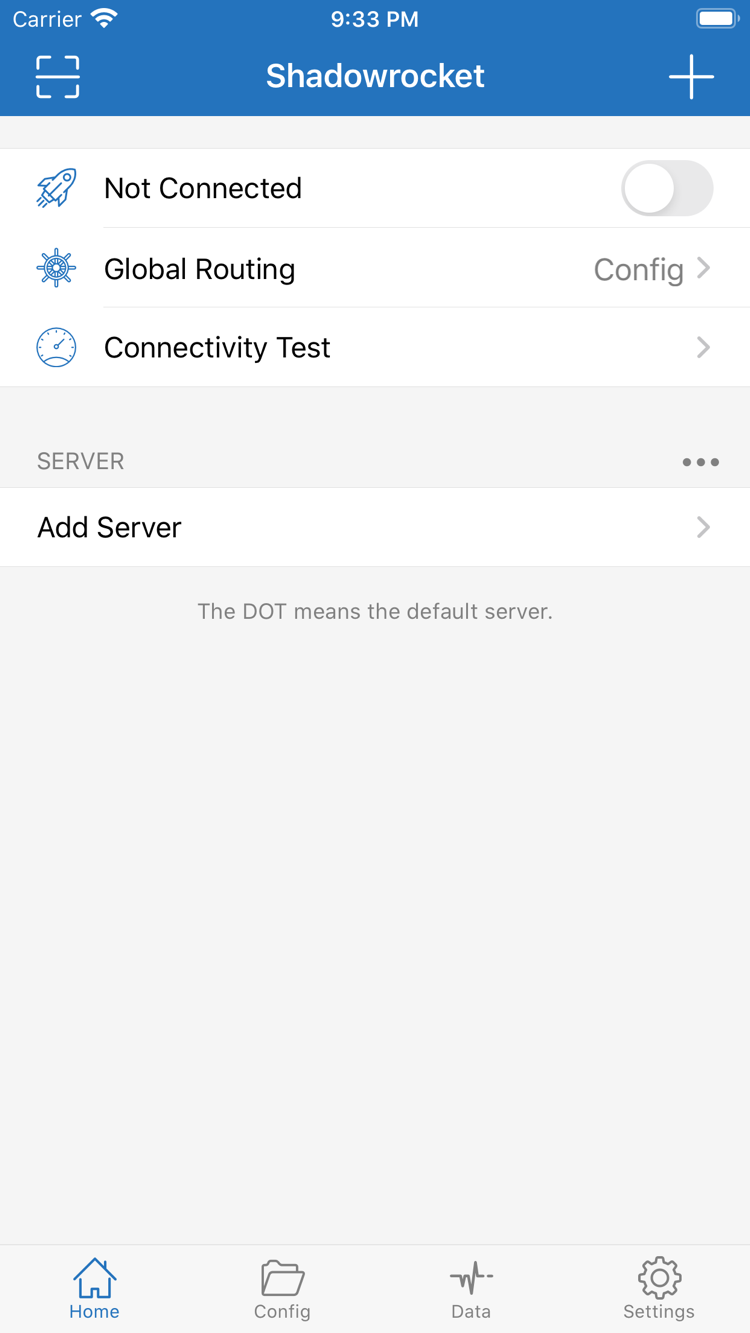
Official Shadowrocket Home screenshot showing Global Routing and Add Server
Shadowrocket · Official Home screenshot

Shadowrocket Features

Understand the differences between server details, configuration files, and connection modes before changing individual settings.

Rule-Based Routing & Global Routing

In Home, select Config under Global Routing to apply the rules in the current configuration file. Rules are evaluated from top to bottom, and the policy for the first match applies; Shadowrocket does not keep searching for a seemingly more specific rule. DOMAIN-SUFFIX matches a domain and its subdomains, IP-CIDR matches an address range, and FINAL provides a fallback at the end. Proxy and Direct can help with comparisons during troubleshooting, but they do not replace checking rule matches. Keep a copy of the original configuration before editing, then check the connection logs to confirm the matched rule and policy.

[Rule]
DOMAIN-SUFFIX,example.com,PROXY
IP-CIDR,192.168.0.0/16,DIRECT
FINAL,PROXY
See rule order and examples →

Three Configuration Elements to Check

Server details answer “where to connect” and include the protocol, address, port, and authentication parameters. A configuration file answers “which route should each request take” and contains rules and related settings. Global Routing determines “how requests are handled right now.” Check all three. A server appearing in the list does not mean it is selected; a file appearing in Config does not mean it is the active configuration. For your first connection, select an existing server entry, then check Global Routing and the active configuration. This can prevent repeated changes that produce no clear difference.

The rules shown on this page are syntax examples. example.com illustrates matching only; it is not valid server information. PROXY, DIRECT, and REJECT are policy keywords for routing through a proxy policy, connecting directly, and rejecting requests, respectively. Choose policies based on your needs; rule length and file size alone do not indicate whether a configuration is suitable.
App Store Availability

Purchase, installation, and app updates are all handled through the same App Store product page.

iPhone

Verify the app’s identity and compatibility in the App Store before purchasing and installing it. When you connect for the first time, the system may ask to add a VPN configuration. Confirm that the prompt was triggered by your current action, then follow the system instructions to authorize it. Check the App Store listing for system requirements.

See the iPhone setup guide →

iPad

iPhone and iPad can share a purchase. Use the Apple Account used for the purchase to check your purchased items. After installation, verify the server selection, Config file, and system authorization on this device; another device’s connection status does not mean this one is ready. Check the App Store listing for purchase eligibility.

See the iPad setup guide →

Shadowrocket is also available from the same App Store for Mac and Apple TV; check the store listing for compatibility details.

Check Purchase History and Device Configuration Separately

Purchase history is linked to your Apple Account; server parameters and rules are managed in the app. If a redownload button appears after switching devices, it only means the store recognizes the purchase entitlement. It does not mean this device has the server details from your previous device. While the old device is still available, organize the configurations you want to keep and confirm what is synced or backed up before importing and testing them on the new device. Store records containing authentication details securely. When asking for help publicly, share only the necessary information with sensitive details obscured.

If Shadowrocket does not appear in search results, use the product page link on this site, then check your Apple Account’s store region, access restrictions, and account status. Do not pay for an app based on a similar name, or rely on search ranking to verify its identity. Availability, current pricing, and purchase eligibility depend on the App Store page shown to your account.

Three Steps to Your First Connection

These steps assume you already have your own subscription or server details.

  1. 01 · Import

    Add Server & Existing Subscriptions

    First identify whether you have a single share link, a subscription URL, or a rule configuration file. Use Add Server to enter details manually, filling in the fields for the selected Type. When scanning a QR code, only scan one from a source you trust. After importing through Subscribe, return to Home, check the server list, and select the entry you plan to test. A displayed name does not confirm that the parameters are correct; compare the address, port, authentication, and transport settings with the original details.

    If the list is empty after importing, check that the copied content is complete and has no extra spaces or explanatory text, then verify that the original URL can still be updated. Avoid repeatedly adding the same content; duplicate entries make selection and troubleshooting harder. Manage subscriptions and configuration files separately, and do not assume that any webpage URL is valid import content.

  2. 02 · Choose a Mode

    Three Global Routing Modes

    Config applies the rules in the current file; Proxy routes requests through the proxy path; Direct uses a direct connection. For everyday rule-based routing, select Config and confirm the active configuration file. You can briefly compare other modes while troubleshooting rules, but restore your intended setting afterward so later tests and everyday use are not using different conditions.

    Selecting Proxy does not guarantee that every network condition will be met; server parameters, network status, and the destination service can all affect the result. If a request does not take the expected route in Config, check the match log and rule order before replacing the entire configuration. Change one field at a time so you can tell which change affected the result.

  3. 03 · Verify

    Connection Toggle & Actual Requests

    After selecting a server and mode, turn on the connection toggle at the top of Home and approve the VPN configuration if prompted by the system. Once the connection status changes, open a familiar destination, then return to the app and check the request log and Data. First confirm that the request was processed, then check its policy and result. The system’s connection indicator shows connection status; it does not replace testing actual access.

    If Connectivity Test returns a result but a page still will not open, note the test method, current mode, destination domain, and error, then check the server connection, DNS, and rule match separately. Temporarily turning off On Demand can make manual tests more consistent. Do not change the server, network, and rules in the same test; otherwise, it is difficult to compare results.

Keep Changes to a Minimum During Your First Test

First connect using one existing server entry, then add your own routing requirements gradually. Settings such as URL Rewrite and hostname mapping each have specific uses; there is no need to change every configuration section during your first connection. If something goes wrong, return to the last verified working state and compare what you added. The full guide covers importing, choosing a mode, verifying a connection, and troubleshooting failures, so you can follow along as you go.

View the full guide →

Verify the App & Understand the Purchase

Use information on the App Store page to verify the app’s identity and purchase terms.

  • App ID 932747118
  • One-time purchase
  • Closed-source commercial app

Developer, Icon & App ID

Official Shadowrocket app icon

Shadow Launch Technology Limited
App ID: 932747118

On the product page, first check that the app is named Shadowrocket, then verify that the developer is Shadow Launch Technology Limited and compare the icon with the official one shown here. The id932747118 at the end of the link is the app ID. Check the name, icon, and developer together; do not identify the app by the nickname “Shadowrocket” alone. Verify similar-looking search results on the product page.

Shadowrocket is a closed-source commercial app. The App Store is the reference for purchase, update history, and compatibility information. This is the official Shadowrocket manual, with instructions for purchasing and configuring the app. Check the store page before paying for current pricing, system requirements, and availability to your account.

Purchase Entitlement & Connection Details

A one-time purchase of the client is not a server subscription. The US store price is a one-time purchase of $2.99; actual prices vary by storefront and are shown in local currency on the App Store page. The purchase provides the right to use the client; it does not include a server, subscription URL, or authentication details. This site does not provide, sell, or recommend servers or subscriptions. It explains how to configure information you already have.

Check the app purchase and the validity of existing services separately. Being able to redownload the app does not mean the original server details are still valid; a server connection failure does not necessarily indicate a problem with the app purchase. Record the store purchase status, in-app parameters, and current network conditions separately to avoid repeatedly changing unrelated settings.

Store Region & Search Visibility

App Store search results can depend on the Apple Account’s store region, access restrictions, and account status. Open the product page using the app’s fixed ID, then check the message shown there. If the product page says the app is unavailable, check your account and device conditions rather than assuming that no search results mean the app’s name has changed.

Age rating restrictions can also affect search results and visibility. Check the permitted range in the relevant device restriction settings, and follow the account management requirements. Handle account, payment, and purchase history issues through the appropriate App Store options. In-app server settings and App Store account visibility are separate matters.

Restore Purchases & Update the App

To redownload Shadowrocket on iPhone or iPad, check your purchases using the Apple Account used to buy it. Check the App Store listing for purchase eligibility. When reinstalling or switching devices, look for Shadowrocket in your purchased items first. If a price button appears again, pause before paying and check that you are using the right account and purchase history. Family Sharing availability depends on the store listing and the information shown for your account.

App updates are handled through the App Store. If an update moves an interface item, use labels such as Home, Config, and Settings to find it, then check the active file, Global Routing, and server selection. Updating a server subscription and updating the app are separate: the former refreshes the existing server list, while the latter updates the client. Neither replaces the other.

Configuration & Troubleshooting Notes

Three recent guides cover subscription updates, rule policies, and App Store search issues.